





Imagine a form in your application: the user uploads an image of a document, and you would like to pre-fill a reference and an amount. For your business code, these are two strings to verify. But in the uploaded file, that information is still only pixels. How do you get from one to the other?
That is the role of OCR, or optical character recognition. We will build a small local pipeline with Python, Docker and EasyOCR, then examine what it actually reads. Not merely text that looks correct on screen: we will also retain the detected areas, the engine scores and the measured errors.
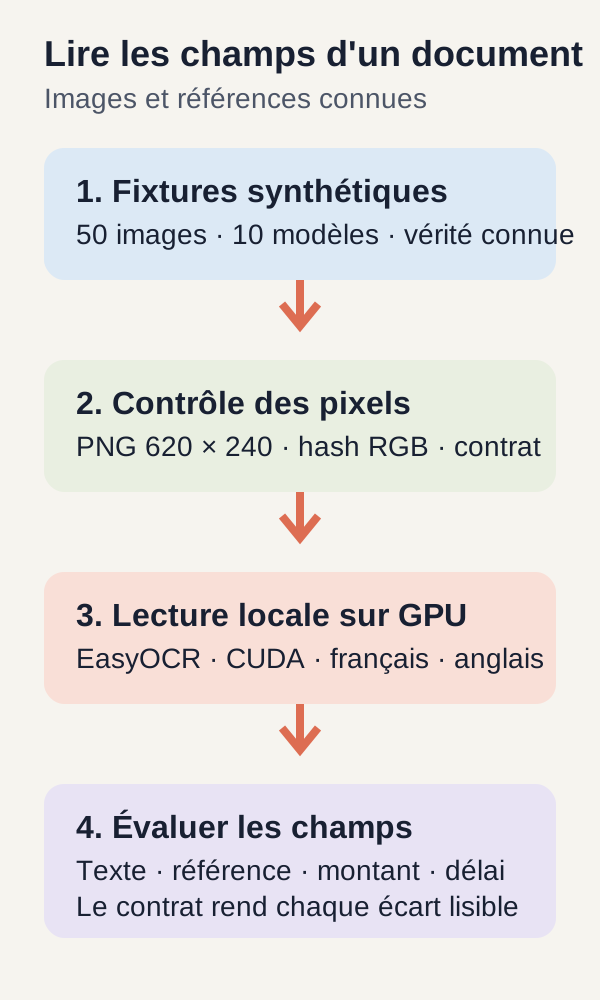
To get started without handling private documents, the project creates 50 synthetic images whose content we already know. It reads them on a CUDA GPU, then calculates its report on 40 images set aside for testing. The distinction between what we expect and what the model produces will guide us throughout.
Download the complete tutorial project.
The results presented come from two validated reproductions of this r3 archive, in fresh directories. Examples added to explain a concept are identified as such: they do not replace the project's measured outputs.
The problem and the expected result
Reading text is not yet understanding a document
An OCR system, short for optical character recognition, answers two successive questions: where is there text in the image?, then which characters are in those areas?
The first step is detection. The second is recognition. The final text can then be built by combining the fragments obtained. This separation is reflected in the EasyOCR API, with its detection and recognition operations.
Consider an illustrative situation: you see "Total EUR 10.00" in an image. Your application still has several questions to answer. Did the engine read every digit? Did it retain the decimal separator? Is that amount the total, a subtotal, or another value present in the document?
Recognising characters and extracting a business field are therefore two different steps. This tutorial builds and evaluates the first pipeline; its reference and amount checks deliberately remain simple.
The files you will get
At the end of the tutorial, outputs/images/ will contain the 50 PNG files. outputs/prepared.json will link the images to their expected text and verification hash. outputs/ocr.json will retain, for each image, text boxes, recognised text, confidence scores and measured durations. Finally, outputs/evaluation.json will contain the report for the 40 test images only.
For a web developer, think of an integration test: you prepare known data, pass an input through the system, then compare the response with what was expected. Here, the input is not a JSON form but an image, and the result may include reading errors.
GPU, Docker and resource prerequisites
The r3 tutorial was validated on Linux amd64, in other words the x86_64 architecture, with Docker Engine, Docker Compose, an NVIDIA driver, nvidia-smi and NVIDIA Container Toolkit. This article's measurements were taken on an RTX 3090.
The GPU is the graphics card used to accelerate the model's calculations. CUDA is the NVIDIA computing environment used in this project. NVIDIA Container Toolkit makes that access available from Docker; a card visible on Linux is not necessarily visible in a container. Its installation is described in the official NVIDIA guide.
This inference tutorial is CUDA-only. It has no validated CPU fallback. In the supplied .env file, set GPU_DEVICE before startup if you need to expose a card other than card 0.
The preflight, meaning the preliminary check, requires 20 GiB free on the project disk and Docker storage, as well as 12 GiB of available RAM. The application container itself is capped at 8 GiB of memory, 4 CPUs and 256 processes. GiB and MiB are binary units of memory or disk capacity.
Do not confuse these values: preflight thresholds concern resources available on the host; the container cap limits what the application can use. RAM is the machine's main memory, not the graphics card's VRAM.
After extracting the ZIP, from the project root, begin with:
./scripts/preflight.sh
This script checks Linux, Docker, Compose, the selected card, CUDA initialisation from Docker, RAM and disk space. It does not configure your system for you. If it detects the GPU on the host but not in Docker, configure NVIDIA Container Toolkit, then run the check again.
These checks define the tutorial's conditions. They promise neither compatibility with every CUDA card nor identical durations on every machine.
Data before OCR
Why create the documents ourselves?
Before measuring a reading, we need a reference answer. In machine learning, this is often called ground truth: the information considered correct, against which we compare the model's output.
The data/fixtures.json file contains 50 synthetic records. A fixture is simply a prepared dataset for a test, like those you use to populate a development database. Here is the project's first record:
{
  "id": 0,
  "template": 0,
  "split": "dev",
  "variant": "clean",
  "ref": "REF-000",
  "amount": "10.00"
}
id identifies the image. template identifies its layout. split indicates the set it belongs to, here development. variant selects the image appearance. Finally, ref and amount give the expected values before any recognition takes place.
src/images.py turns that record into three lines:
BOUTIQUE 0
Reference REF-000
Total EUR 10.00
This is not OCR output, but the text drawn by the generator. We therefore know the answer without asking the engine we want to evaluate. The OCR receives the pixels; the reference remains available for later comparison.
Controlled variations, not real invoices
Each RGB image is 620 × 240 pixels and uses the 28-pixel DejaVu Sans font. RGB means that each pixel is represented by its red, green and blue components.
The generator applies one of four variants: a clean image, a 3-degree rotation, contrast set to 0.4, or Gaussian noise with a standard deviation of 12. Noise adds variations to pixel values. Its seed, 42 + id, makes the same noise reproducible for a given record in the fixed environment.
The word template does not mean ten realistic invoice layouts. In the code shown later, the number notably changes the "SHOP" line and the text's horizontal offset. All images remain simple three-line records.
Why separate development and testing?
The ten templates are split into two non-overlapping sets: two templates for development, or 10 images, and eight for testing, or 40 images. No template belongs to both sets.
The idea is to distinguish examples used to refine the pipeline from those used to measure its result. This does not mean that we train EasyOCR on the ten development images: we use already trained models here, without changing their weights.
Also note the size of the test groups:
| Variant | Images per test template | Total across the 8 test templates |
|---|---|---|
clean: clean image |
2 | 16 |
rotation: 3-degree rotation |
1 | 8 |
noise: Gaussian noise |
1 | 8 |
contrast: contrast at 0.4 |
1 | 8 |
| Total | 5 | 40 |
The annotations and images are entirely synthetic: no private document is exposed. In return, this set represents neither scanned invoices, complex layouts nor handwriting. Separating templates does not remove that limitation.
Install, acquire and prepare the images
Extract the archive and move to its root. Run the following commands from that directory, in the order shown. They correspond to the beginning of each of the two r3 reproductions; the preliminary check is repeated to present the complete tutorial:
./scripts/preflight.sh
sh scripts/setup.sh
docker compose build
docker compose --profile acquisition run --rm --no-deps fetch
docker compose run --rm --no-deps app -m unittest discover -s tests -v
docker compose run --rm --no-deps app -m src.cli prepare
What does each step do?
setup.sh prepares directories with the current user's identity. docker compose build builds the Python 3.12.13 image locked by the project. Dependencies include PyTorch 2.10.0+cu129, torchvision 0.25.0+cu129 and EasyOCR 1.7.2.
PyTorch provides the computation engine used by EasyOCR; torchvision is part of the installed vision-processing stack. The versions above are those of the validated tutorial, not an invitation to replace them with the latest available versions. The Python image is documented on Docker Hub, and the relevant PyTorch CUDA packages are published in the cu129 index.
The fetch service acquires public resources. In particular, it retrieves the EasyOCR craft_mlt_25k and latin_g2 weights from official JaidedAI releases. Weights are the numerical parameters learned by models before this tutorial. Loading them enables inference: applying an already trained model to a new image.
The project checks the size and SHA-256 of archives and extracted weights. This fingerprint verifies that the files match those expected. The first validated acquisition represents 91,536,692 bytes.
fetch is the only service with a bridge network for this acquisition. The application then uses an internal Docker network, mounts models read-only and writes only outputs. This separation avoids mixing resource downloads with image processing.
Tests come before the measured tutorial
The unittest command must pass the 15 public tests. They check, among other things, data population, template separation, deterministic rendering, metric calculation and image errors. They also include real detection and recognition on CUDA.
This last point matters: seeing a card in Docker does not prove that the detector uses it. The test inspects the device on which it runs. These checks may therefore already use the model; they come before the main tutorial's timed reads.
Finally, prepare writes the 50 PNG files and outputs/prepared.json, with the RGB hash and reference text associated with every image. At this stage, you can inspect the images the engine will have to read.
In Compose commands, run starts a one-off task, --rm removes its container after execution, and --no-deps avoids automatically starting related services. Saved results in mounted directories remain available. These options are detailed in the Docker Compose documentation.
Useful vocabulary before reading the code
A box, text and confidence
In this project, EasyOCR uses CRAFT to locate text regions and the latin_g2 recogniser to read their characters. The reader is configured for fr and en. Above all, remember the separation of roles: locating an area is not yet successfully reading it.
For each returned area, we retain a box defined by four points, the recognised text, and a confidence score. To illustrate this structure, here is an invented object for teaching purposes. Its coordinates and confidence are not r3 measurements:
{
  "box": [[20.0, 80.0], [330.0, 80.0], [330.0, 110.0], [20.0, 110.0]],
  "text": "Reference REF-000",
  "confidence": 0.98
}
The four points mark out the relevant region. The text indicates what the engine read there. Confidence is an internal score: 0.98 does not mean that your business field has a 98% chance of being correct.
To interpret this score as a probability of correctness, you would need to verify that relationship on representative data: that is the role of calibration. The r3 tutorial does not do this work and does not define a confidence threshold that guarantees an amount's correctness.
CER: counting character errors
CER, short for character error rate, compares recognised text with expected text. It uses Levenshtein distance: the minimum number of character insertions, deletions and substitutions needed to turn one text into the other.
An illustration independent of r3 results: turning REF-000 into REF-00O requires replacing the final zero with the letter O. That is one substitution. Yet for product search, that single character can prevent the correct reference from being found.
CER divides the number of errors by the number of expected characters. A CER of zero means no difference was counted under the comparison rules in use. Those rules matter: r3 normalises texts before comparing them, as we will see in the code.
The report uses a micro CER: it adds errors across all test images, then divides by the total number of their reference characters. It is not a simple average of CER values per image. A longer expected text carries more weight in the total.
Field checks: useful, but limited
The program separately checks whether REF-xxx and the expected amount occur in the raw text. These are substring searches, not an invoice parser.
These checks do not verify a value's location on the page, its currency, its numeric format, or the association between a label and its content. A value may occur somewhere without being the field the application was meant to extract. Keep this distinction in mind when we read the percentages.
Generate images and verify their bytes
The render function turns a fixture into pixels. It returns the image, expected text and a SHA-256 fingerprint calculated from the RGB bytes. Here is the project's code, with more open formatting:
"""Fiches synthétiques déterministes ; annotations indépendantes de l’OCR."""
import hashlib
import numpy as np
from PIL import Image, ImageDraw, ImageFont, ImageEnhance


def render(fixture):
    lines = [
        f'BOUTIQUE {fixture["template"]}',
        f'Reference {fixture["ref"]}',
        f'Total EUR {fixture["amount"]}',
    ]
    image = Image.new("RGB", (620, 240), "white")
    draw = ImageDraw.Draw(image)
    font = ImageFont.truetype("data/DejaVuSans.ttf", 28)

    for index, text in enumerate(lines):
        draw.text(
            (20 + fixture["template"] * 3, 20 + index * 60),
            text,
            font=font,
            fill="black",
        )

    if fixture["variant"] == "rotation":
        image = image.rotate(
            3,
            resample=Image.Resampling.BICUBIC,
            fillcolor="white",
        )

    if fixture["variant"] == "contrast":
        image = ImageEnhance.Contrast(image).enhance(0.4)

    array = np.array(image)

    if fixture["variant"] == "noise":
        noise = np.random.default_rng(42 + fixture["id"]).normal(
            0, 12, array.shape
        )
        array = np.clip(array.astype(float) + noise, 0, 255).astype("uint8")

    return (
        Image.fromarray(array),
        " ".join(lines),
        hashlib.sha256(array.tobytes()).hexdigest(),
    )


def load_image(path):
    with Image.open(path) as image:
        if not 0 < image.width <= 4096 or not 0 < image.height <= 4096:
            raise ValueError("Dimensions image hors plage")
        return np.array(image.convert("RGB"))
From JSON to pixels
The lines list builds the three lines from the fixture. Image.new creates a 620 × 240-pixel white background, then ImageDraw draws the text on it. The horizontal position depends on the template; the vertical position increases by 60 pixels for each line.
The following conditions select the transformation. A rotation record gets a 3-degree rotation; a contrast record gets the 0.4 factor. For noise, the image becomes a NumPy array: pixel colours are then numbers on which we can perform operations.
np.random.default_rng(42 + fixture["id"]) initialises the random generator from a seed tied to the image. normal(0, 12, array.shape) produces the Gaussian noise specified by the protocol. After adding it, np.clip brings values back between 0 and 255, then uint8 represents them as unsigned eight-bit integers.
The important point is not to memorise every call: for an identical fixture, we want to obtain the same pixels in the fixed environment. Otherwise, we might attribute to the model a difference that actually comes from a different image.
Why calculate a pixel hash?
SHA-256 is a fingerprint calculated from bytes. Here, array.tobytes() provides the pixel bytes, and hexdigest() produces their fingerprint as text. The Python hashlib documentation describes these operations.
prepare saves the PNG and this fingerprint in outputs/prepared.json. Before each OCR call, src.cli reloads the PNG as RGB and recalculates its hash. If the fingerprint differs, the step fails.
The check applies to RGB pixels, not all bytes in the PNG file. It verifies that the visual content used for measurement matches the prepared content. By itself, it is not protection for an entire document pipeline against malicious modification.
load_image adds an input check: width and height must each be between 1 and 4096 pixels. The image is then converted to RGB. As with a file received through a form, we check what we will process before sending it to the next step; this size check is not, however, a complete file-acceptance policy.
Load EasyOCR and retain what it returns
The images are ready. We still need to load the models and submit the pixels to them:
import torch
import easyocr


class Reader:
    def __init__(self):
        if not torch.cuda.is_available():
            raise RuntimeError("GPU CUDA requis")

        torch.set_num_threads(4)
        self.reader = easyocr.Reader(
            ["fr", "en"],
            gpu=True,
            model_storage_directory="/models/ocr",
            user_network_directory="/tmp/networks",
            download_enabled=False,
            verbose=False,
        )

    def read(self, array):
        boxes = self.reader.readtext(array, paragraph=False, workers=0)
        return [
            {
                "box": [[float(x), float(y)] for x, y in box],
                "text": text,
                "confidence": float(confidence),
            }
            for box, text, confidence in boxes
        ]
Read the constructor as service configuration
The first condition refuses to continue if CUDA is unavailable. We therefore do not silently switch to another computation mode.
torch.set_num_threads(4) sets parallelism for PyTorch operations on the CPU; it does not mean four GPUs. This is the role described in the PyTorch 2.10 documentation.
The reader loads the fr and en languages, enables the GPU, and uses weights found in /models/ocr. With download_enabled=False, it cannot download a missing weight during inference. A missing file must therefore be resolved during acquisition, not hidden by an implicit download in the middle of a measurement.
Do not discard the information that explains an error
In read, readtext receives the pixel array. paragraph=False disables paragraph grouping; workers=0 keeps the loading setting specified by the project. The parameters are described in the EasyOCR API reference.
Our method then turns all boxes returned by readtext into dictionaries, without further selection of the best results. Coordinates and confidence scores are converted into Python numbers for JSON output. This does not mean the engine has no internal filters: we retain what it returns rather than choosing afterwards only the favourable readings.
The final text is obtained by joining fragments in the order received. For our three lines, this order is part of the evaluated result. For columns or a table, it may be insufficient: fragments recognised correctly but assembled in the wrong order do not necessarily reconstruct the document.
Run recognition
docker compose run --rm --no-deps app -m src.cli ocr
The command first checks the RGB hash of every prepared image, then writes outputs/ocr.json. Each result retains boxes, concatenated text, confidence scores, duration and the GPU identified by the project.
A warm-up, or initial run, is performed on image 0 before the 50 timed reads. Per-image time excludes model loading and PNG rendering. The measured full tutorial includes those steps: we are not talking about the same stopwatch.
To read an output, compare the PNG, its boxes and its text. A reference missing from the text may be due to an area not returned, poor recognition or unsuitable assembly. The detailed JSON makes investigation possible; the global score alone does not say where to look.
Read metrics before results
We now have two objects: expected text and recognised text. Before comparing their scores, we need to state what the program considers a difference.
Normalisation changes the comparison
The normalize function applies NFKC, converts to lowercase, retrieves \w+ character groups, then joins them with a space.
NFKC is Unicode normalisation that harmonises certain equivalent or compatible character representations. It does not correct OCR errors. The \w pattern retains Unicode alphanumeric characters as well as the underscore _; hyphens -, periods and commas are not included. Python documents these behaviours for unicodedata and re.
Here are teaching examples of this function's result, not captured OCR output:
Reference REF-000  →  reference ref 000
Total EUR 10.00    →  total eur 10 00
Total EUR 10,00    →  total eur 10 00
The period and comma disappear as distinct signs, but groups remain separated by spaces. Saying punctuation "no longer counts" therefore does not mean every separation difference becomes invisible: 10.00 becomes 10 00, whereas 1000 remains 1000.
The r3 CER evaluates this normalised text, not a character-for-character reproduction of raw text. In the example above, a decimal point and comma produce the same normalised string. Field checks, however, continue to examine raw text.
The calculation, without a black box
"""Normalisation déclarée et distance de Levenshtein par programmation dynamique."""
import re
import unicodedata


def normalize(text):
    return " ".join(re.findall(r"\w+", unicodedata.normalize("NFKC", text).lower()))


def distance(reference, hypothesis):
    row = list(range(len(hypothesis) + 1))
    for i, expected in enumerate(reference, 1):
        following = [i]
        for j, actual in enumerate(hypothesis, 1):
            following.append(
                min(
                    following[-1] + 1,
                    row[j] + 1,
                    row[j - 1] + (expected != actual),
                )
            )
        row = following
    return row[-1]


def evaluate(rows):
    test = [row for row in rows if row["split"] == "test"]
    errors = sum(
        distance(normalize(row["reference"]), normalize(row["text"]))
        for row in test
    )
    characters = sum(len(normalize(row["reference"])) for row in test)

    if not characters:
        raise ValueError("Références vides")

    return {
        "evaluated": len(test),
        "character_errors": errors,
        "reference_characters": characters,
        "cer": errors / characters,
        "reference_exact": sum(row["ref"] in row["text"] for row in test) / len(test),
        "amount_exact": sum(row["amount"] in row["text"] for row in test) / len(test),
        "mean_ocr_ms": 1000 * sum(row["seconds"] for row in test) / len(test),
    }
distance progressively calculates the minimum number of edits between two strings. For each character pair, it keeps the least costly option among inserting, deleting or replacing. If the two characters are equal, replacement costs zero; otherwise, it costs one.
This is dynamic programming: the calculation reuses intermediate results instead of restarting every comparison from the beginning. row retains the previous row of the calculation, while following builds the next one. You do not need to reimplement the algorithm to interpret the score, but here you can see how errors are counted.
The evaluate values, one by one
The first line of evaluate keeps only entries whose split is test, that is, split == "test". All 50 images are read, but this report's scores and mean_ocr_ms concern the 40 test images.
character_errors adds distances between normalised texts. reference_characters adds the lengths of normalised expected texts. Their quotient gives cer. The Références vides (empty references) check prevents calculating a ratio without reference characters.
Watch the names: row["reference"] is the complete expected text, whereas row["ref"] is the business reference, for example REF-000. CER therefore applies to the document's three lines, not only to the product code.
reference_exact measures the proportion of images where the expected reference occurs in the raw text. amount_exact performs the same search for the amount. Finally, mean_ocr_ms converts seconds to milliseconds and calculates their average across test entries.
The small trap in the word "exact"
The name amount_exact can make it seem as though we validate an extracted field. But look at its expression: row["amount"] in row["text"]. It only asks, "does this exact sequence of characters occur somewhere?"
Take a teaching counterexample, not an error observed in r3: the string 10.00 is also contained in 110.00. This search could therefore succeed even though the complete amount differs. Conversely, 10,00 does not contain 10.00, even if an application intends to treat both spellings as the same number.
These examples modify neither the code nor the tutorial results. They explain why we speak of amount presence rather than "100% correct amount extraction".
A low CER likewise does not guarantee that every error is harmless. One letter can break a reference; one digit can change an important value. You must therefore also read the text, boxes and expected fields for the cases that matter.
Check unusual inputs, then calculate the report
docker compose run --rm --no-deps app -m src.cli negatives
docker compose run --rm --no-deps app -m src.cli evaluate
negatives checks behaviour on a white image and an invalid file. The idea resembles API tests for empty content or a malformed file: do not limit yourself to inputs that go well.
evaluate then writes outputs/evaluation.json, with CER, reference and amount checks, and average OCR duration. Read these values with their definitions, not as a general grade given to the engine.
r3 results and the limits of their interpretation
What the two reproductions actually measured
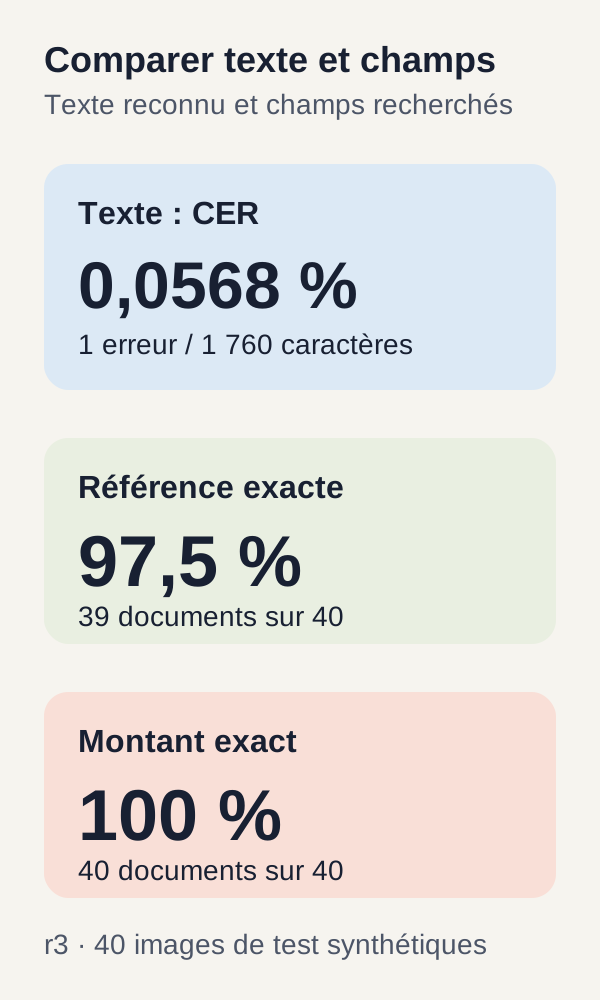
Both reproductions evaluated the same 40 test images. They found one error across 1,760 normalised reference characters. The reported results are as follows:
| Measure | First reproduction | Second reproduction |
|---|---|---|
| Test images evaluated | 40 | 40 |
| Character errors | 1 | 1 |
| Reference characters | 1,760 | 1,760 |
| Micro CER | 0.0005681818181818182 |
0.0005681818181818182 |
| CER as a percentage | About 0.0568% | About 0.0568% |
| Reference present in raw text | 97.5% | 97.5% |
| Amount present in raw text | 100% | 100% |
| Mean OCR latency on the test set | 30.35 ms | 31.33 ms |
| Maximum sampled VRAM | 600 MiB | 564 MiB |
| Full tutorial duration, including acquisition | 87.04 s | 49.65 s |
The CER calculation is easy to read: 1 ÷ 1,760 = 0.0005681818181818182, or about 0.0568% after multiplying by 100.
Across 40 images, 97.5% corresponds to 39 images in which the expected reference is present. This is another way of reading the same measure, not an additional test. Likewise, the amount is present in all 40 images according to the substring check. This does not validate an invoice parser.
The two reproductions show the tutorial repeated on this dataset. They are not two independent document datasets: the 40 test images are the same.
Reading time and memory measurements correctly
Here, latency is the duration of one OCR read, with the exclusions described above. The full tutorial duration includes more work, notably acquisition. The second build reused public Docker layers: the 87.04 s and 49.65 s are therefore not two entirely cache-free installations.
VRAM is graphics-card memory. The maxima of 600 MiB and 564 MiB come from sampling roughly once per second on the RTX 3090 used. A peak between two samples may not be seen. These values are neither guaranteed real peaks nor a minimum card specification.
These figures do not measure compressed traffic, exclusive Docker space after deduplication, or behaviour under load. Nor do they allow a promise of identical latency for several simultaneous users or larger documents.
Did rotation "lower quality"?
The 16 clean images in the test set have a CER of 0. The rotation, noise and contrast groups each contain 8 images. The rotation group has one error, with a CER of 0.002840909090909091 and a reference present in 87.5% of cases. Amounts remain present in all groups.
It may be tempting to conclude: "rotation explains the error." But references change from one group to another. We are not comparing exactly the same document before and after rotation.
These groups are not paired: their differences do not concern only the image transformation. The conclusion remains descriptive—one error was observed in this dataset's rotation group—not causal. To isolate the effect of rotation, another protocol would be needed, as described in the exercise.
What we learned
We built a complete small-scale pipeline: define expected content, create images, check inputs, locate text, recognise characters and calculate metrics whose code we can read.
For a web developer discovering AI, the main change is this: a model output must be observed and evaluated, not merely consumed because it has the right shape. JSON makes integration easier; it does not guarantee that its content is correct.
CER describes part of the textual difference. Reference and amount checks ask other questions, but remain presence searches. None of these elements alone replaces business validation.
The two r3 reproductions validate this local tutorial on 50 synthetic images, including 40 test images. They validate neither an invoice parser nor universal performance on real documents. It is precisely this limited scope that lets us understand what we measure before making the project more complex.
Exercise: predict, modify, run, observe, explain
First, make a prediction
Before running the command, revisit the data split. With eight test templates, two clean images per template and one image of each other variant, how many results do you expect in each group?
Second question: if the rotation group has more errors, have you shown that rotation is the cause? Write your answer before reading the outputs.
Run it, then observe
docker compose run --rm --no-deps app -m src.cli exercise
Compare your prediction with the per-group metrics. clean has 16 images; rotation, noise and contrast have 8 each. Explain this count from the templates instead of memorising it.
The exercise command does not modify the model or launch new training. It groups outputs already obtained. The "modify" part of the exercise occurs in the separate experiment proposed below, not in this command.
The expected conclusion is that the groups describe the data provided. It is not that rotation causes a universal drop in quality.
To test a cause, change the protocol in a copy
A paired comparison would render exactly the same text in a clean image and a rotated image. The two images would form a pair. You could then compare their errors while retaining the reference, amount and other parameters.
Work in a separate directory and vary only one factor at a time. Plan for the new image generation, their OCR pass and the new measurements. Merely changing the grouping of old outputs does not create those pairs.
This proposal was not run in r3. It is a new experiment, with no result announced in advance. Its value is learning to ask a question that the data can actually answer.
Your separate experiment, with no result announced in advance
To try your own documents, create a separate working directory and keep the r3 archive unchanged. You will then retain a comparison point whose content and expected behaviour you know.
Before running OCR, describe the document types, scan quality, languages, orientations and ground-truth rules. Also specify the cost of an error: an unfound reference and a wrong amount do not necessarily have the same consequences in your application.
Choose your metrics before looking at the results. You could measure reference errors, amount errors, rejection rate and the outcome of human review. A rejection would then be a document your application refuses to process automatically under a rule you define; that mechanism is not provided by CER calculation alone.
Scans, tables, columns, logos, handwriting and degraded images change the problem. Do not announce any score before measurement. If you add an amount parser or a confidence threshold, evaluate that new step separately: EasyOCR confidence is not calibrated here as a probability of business correctness.
Useful troubleshooting
nvidia-smi absent (nvidia-smi missing). Install or repair the NVIDIA driver, then run preflight again. As long as this check fails, continue diagnosing the environment rather than the images.
GPU detected on Linux but not in Docker. Configure NVIDIA Container Toolkit and verify that GPU_DEVICE identifies the expected card. Hardware visibility on the host and its exposure to the container are two separate checks.
fetch fails. Check the network and hashes. Do not bypass size or SHA-256 checks to make the error disappear: you would lose the link to the resources of the validated tutorial.
GPU CUDA requis (CUDA GPU required). Check the driver, GPU exposure in Docker and GPU_DEVICE, then resume after complete acquisition. The code deliberately refuses to continue without CUDA.
Image modifiée depuis prepare (image changed since prepare). Run prepare again before ocr. Do not edit PNG files between these steps in the reference reproduction: the check exists precisely to detect a difference between the prepared and measured image.
Unexpected boxes or reading order. Open outputs/ocr.json and the related PNG files. Joined text follows the order returned by the engine; it does not automatically solve multi-column documents. Start by determining whether the problem comes from the returned area, recognised characters or text assembly.
What is still missing before document production
In a real application, OCR would be one component of a broader process. The pipeline would need to handle the formats actually received, orientation, image straightening, scan quality, layouts, tables, languages and handwriting required by your domain.
The next step would be to associate fields reliably: determine which value corresponds to which label, validate number and currency rules, calibrate rejections and plan human review when the cost of an error warrants it. Reading two amounts in the same image is not enough to determine which one should fill your application's "total" field.
There is also all the familiar work of a web application: secure ingestion, authentication, document permissions, quotas, storage, retention rules, monitoring, backup and restoration. Load and concurrency measurements must cover the complete service, not just an isolated OCR read.
Finally, evaluation must use representative documents, distributed across important cases: document types, languages, scan qualities or layout difficulties. This is the meaning of a stratified evaluation. The 40 synthetic test images do not replace it.
Exact cleanup
At the end of the tutorial, run this command from the archive root:
docker compose down
It belongs to the validated r3 tutorial. It stops the project's Compose resources and removes the relevant containers and networks, without deleting models, the Docker image or outputs. Default cleanup behaviour is described in the docker compose down documentation.
Keep the JSON files and PNGs as long as you need them to review the results. Do not delete your separate experiments until you have checked their content. A global Docker purge is not necessary to finish this tutorial.