





Introduction
Customizing error pages (404 — page not found and 500 — internal server error) in your application can improve the user experience during unexpected situations. This guide will explain the process of setting up custom error pages in the SonataExtraBundle.
Prerequisites
Before continuing, there are a few important points to note:
- Development environment: Custom error pages do not appear in the development environment. To see them in action, you need to configure your application in production mode.
- Environment settings: Define in your file
.envAPP_ENV=prodandAPP_DEBUG=0. - Administrator session: Make sure you are not logged in as an administrator. It is recommended to use one session for the administrator and another (in private browsing) to test the error pages.
Setup steps
Step 1: update the Sonata Admin configuration
First of all, add the following to your SonataPage configuration file:
sonata_admin:
    catch_exceptions:
        not_found: [404]
        fatal:     [500]
This configuration intercepts the relevant exceptions and forwards the response to the route _page_internal_error_{key}. SonataPage intelligently links this to a designated page.
Step 2: Decorate the error pages
In the Sonata 'Pages' administration panel, locate and check the 'decorate' box.
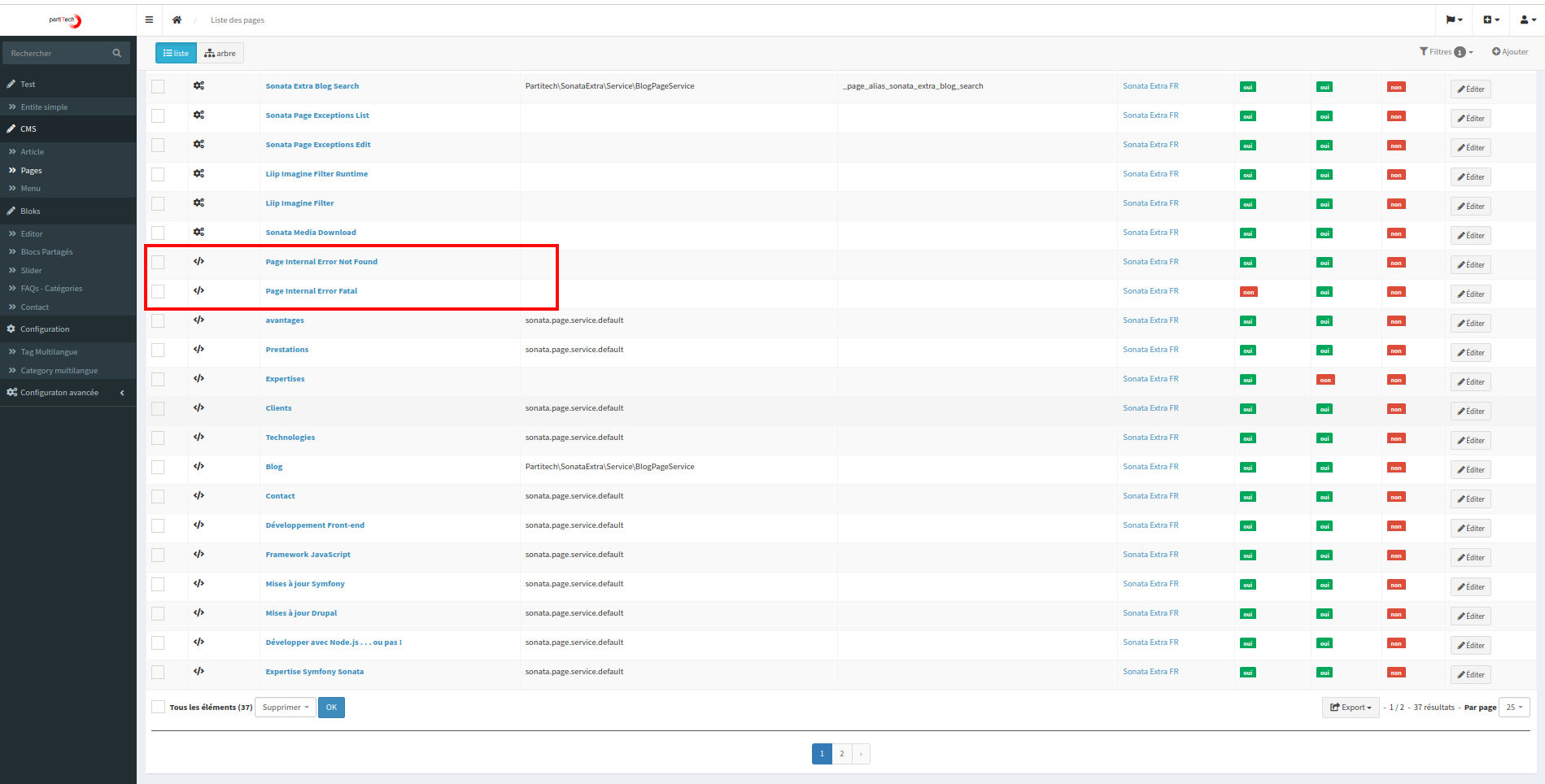
You will see the Page Internal Error Fatal and Page Internal Error Not Found options, which are crucial for the following steps.
Step 3: Translation and customization
All elements of the error pages can be translated for each locale of the site.
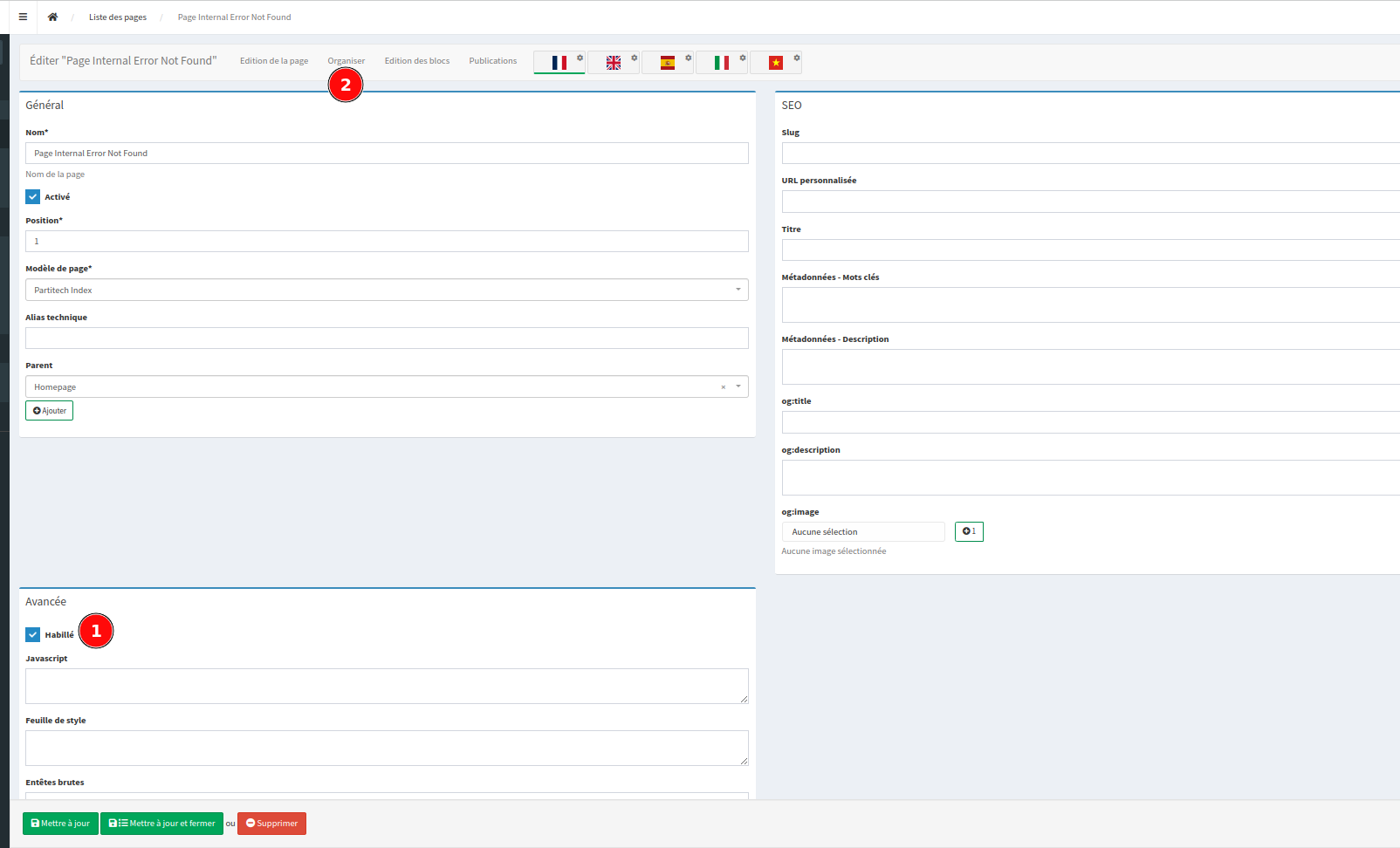
After activating the 'Decorate' option, save your changes and go to the 'Organize' panel. Here, you can customize the main container of your error page.
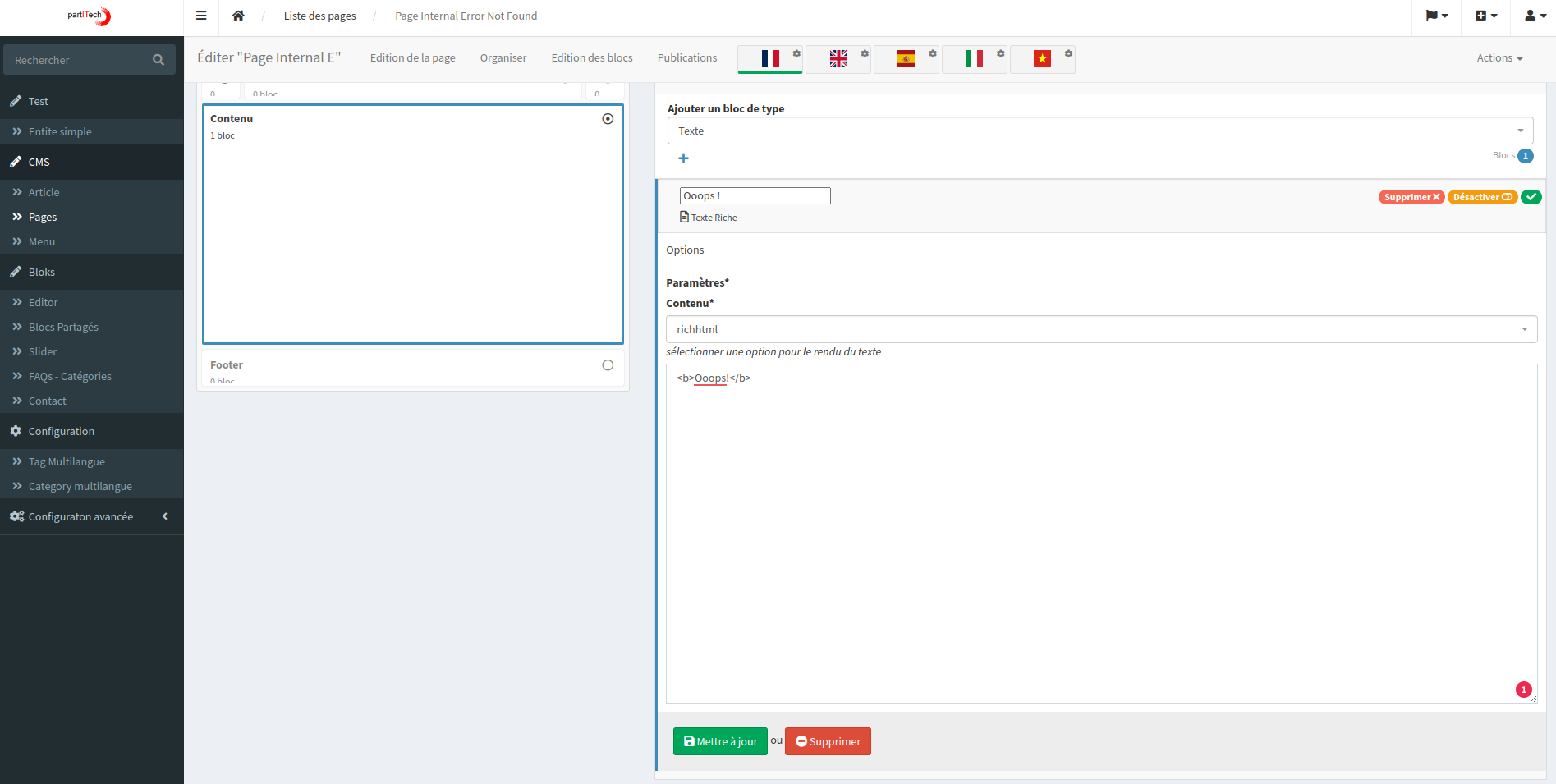
Step 4: Publishing the custom pages
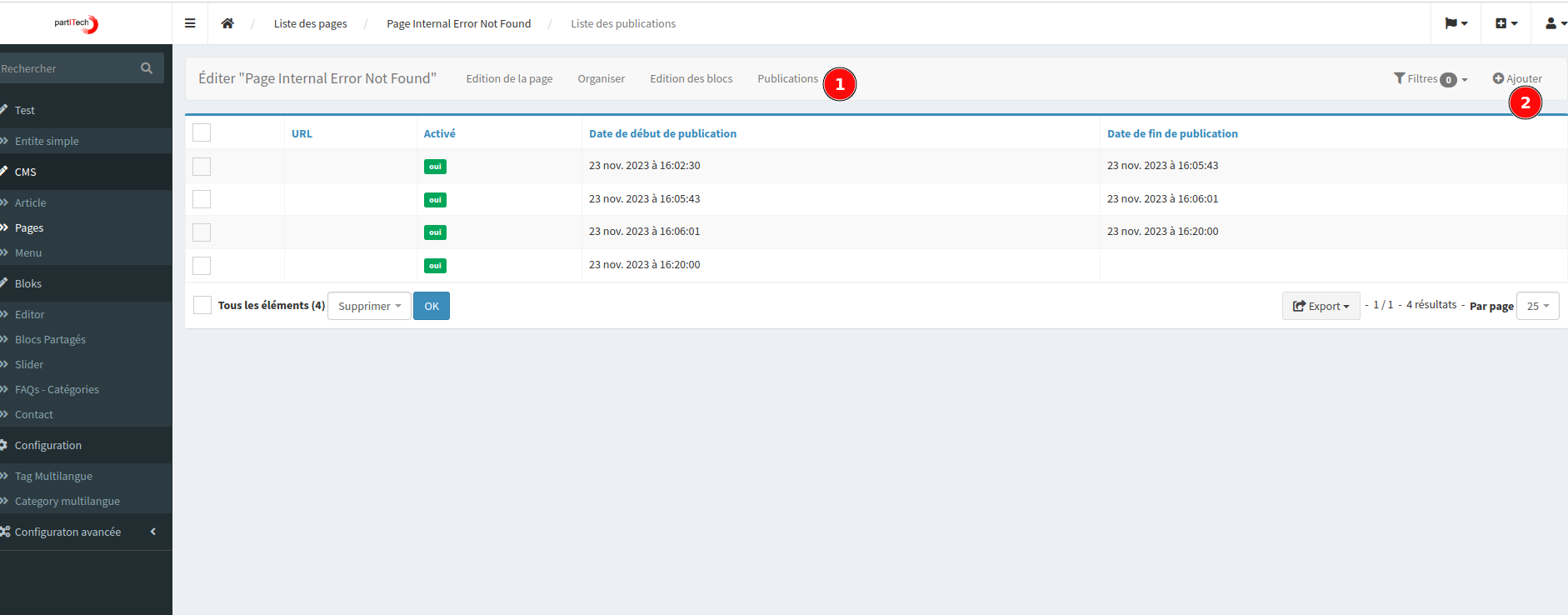
The final step is to publish your custom pages. Create a snapshot of your page by clicking on the publishing panel.
Conclusion
After completing these steps, your custom 404 and 500 error pages should be active and visible in production mode.
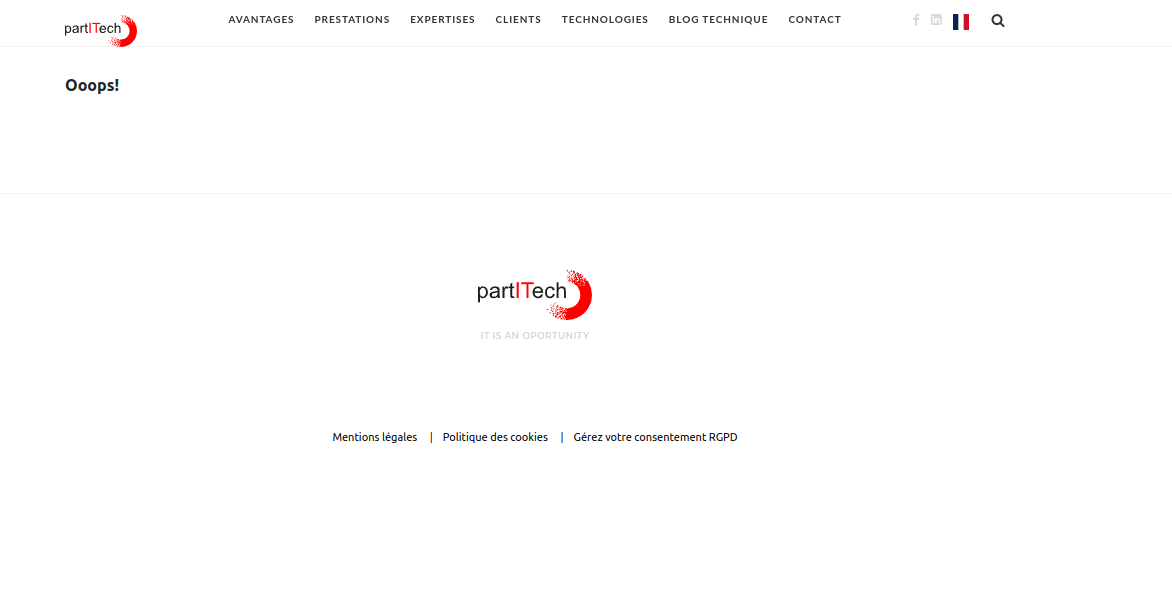
With this configuration, you ensure a better user experience even in case of errors in your application.
Minimal recipe
Test a non-existent URL and a controlled application error in the staging environment. The response must retain the correct HTTP code (404 or 500): display a nice page with a status 200 degrades incident tracking and indexing.